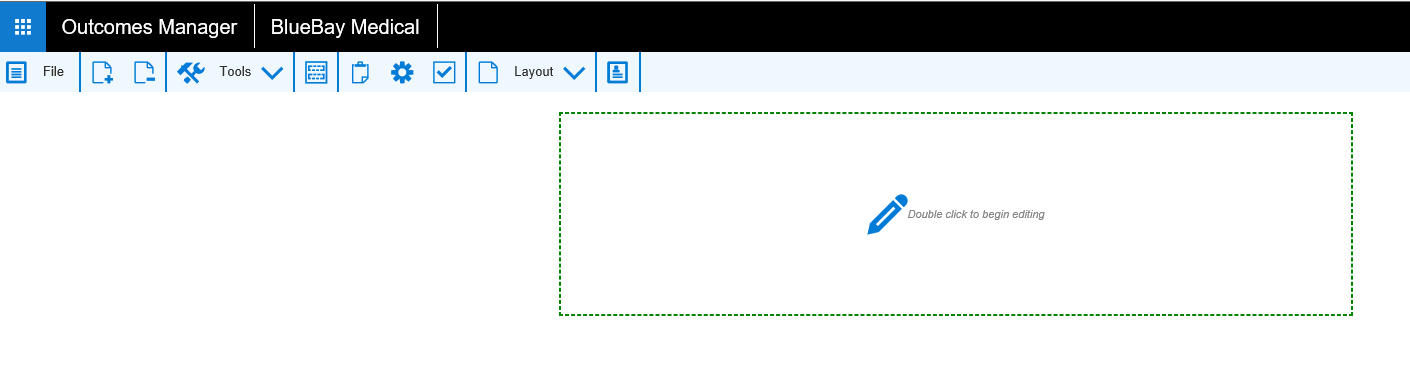
The Import Document option within Guideline allows you to import a whole Microsoft Word document into a section, rather than typing or copying and pasting.
The import process may not be able to convert all the formatting exactly as per the original document so may require further editing once imported. It is primarily aimed at making it quicker and easier to import large amounts of text rather than typing or copying and pasting.
This opens a blank Guideline screen by default. A new blank section is displayed.
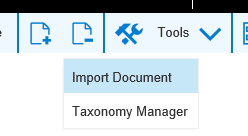
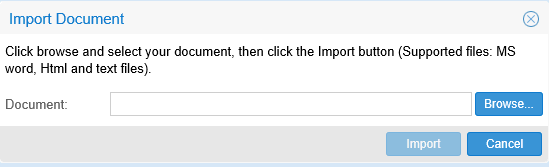
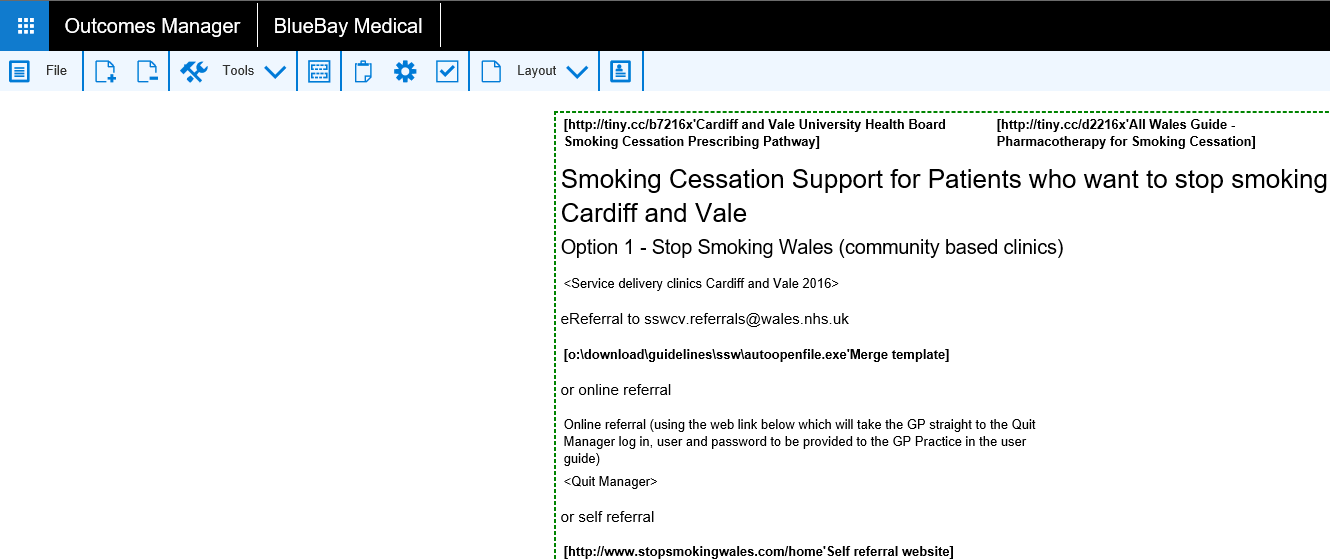
The imported document can be edited by double clicking within the highlighted section if required.
Further sections can be added with the Insert new Section icon:
Sections can be moved up or down within a Guideline if required.
An up or down arrow appears in the menu. (Dependant on position of the
section)