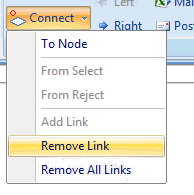
Add Link is a function that connects your Rule nodes to a high level Care Pathway built using the Pathway Designer software. You can connect to Nodes that are used on a template or display an alert.
Add Link from the menu Add Link shortcut from the Ruleset inline menu.
Adding links in your rule.
• Click on the Split icon and select Care Pathway from the Window group items
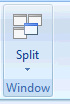
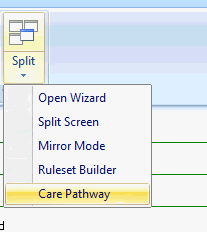
The Pathway Developer screen splits and in the left hand pane you are prompted to login to the Pathway Designer system.
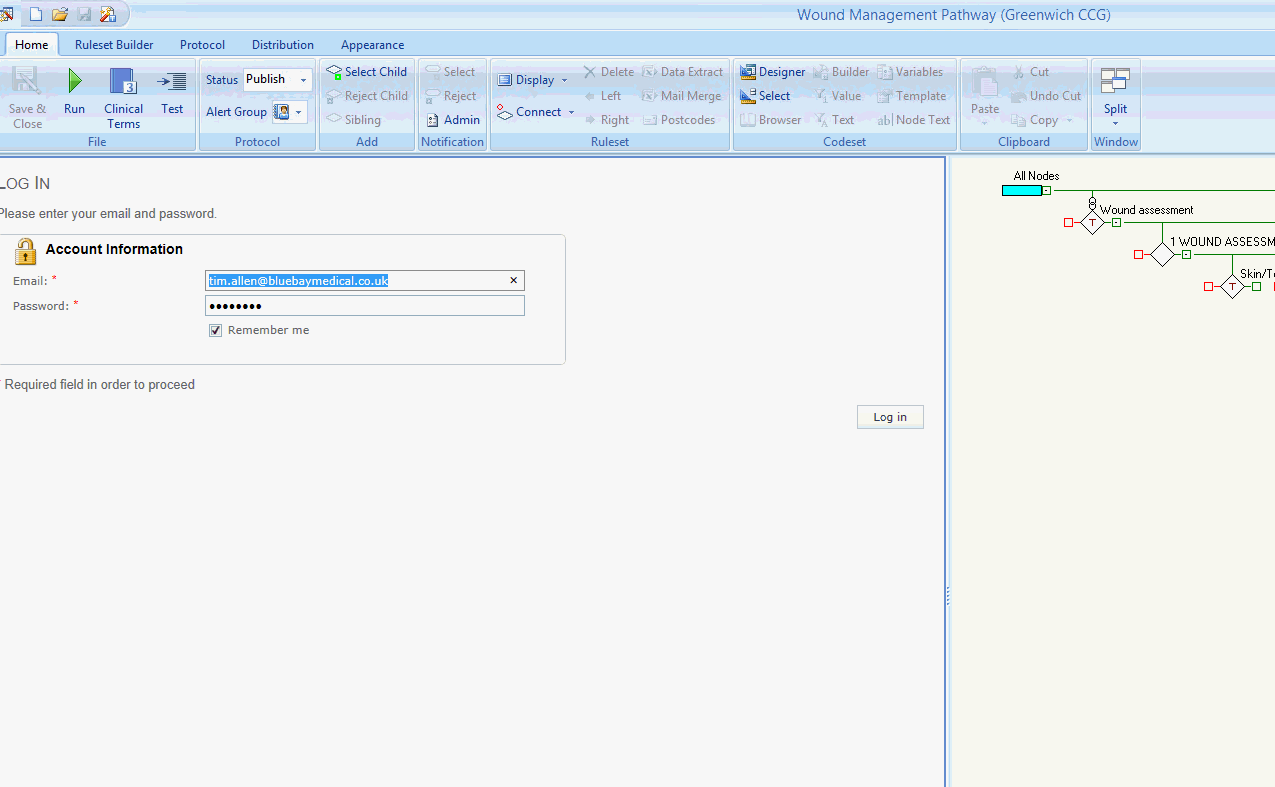
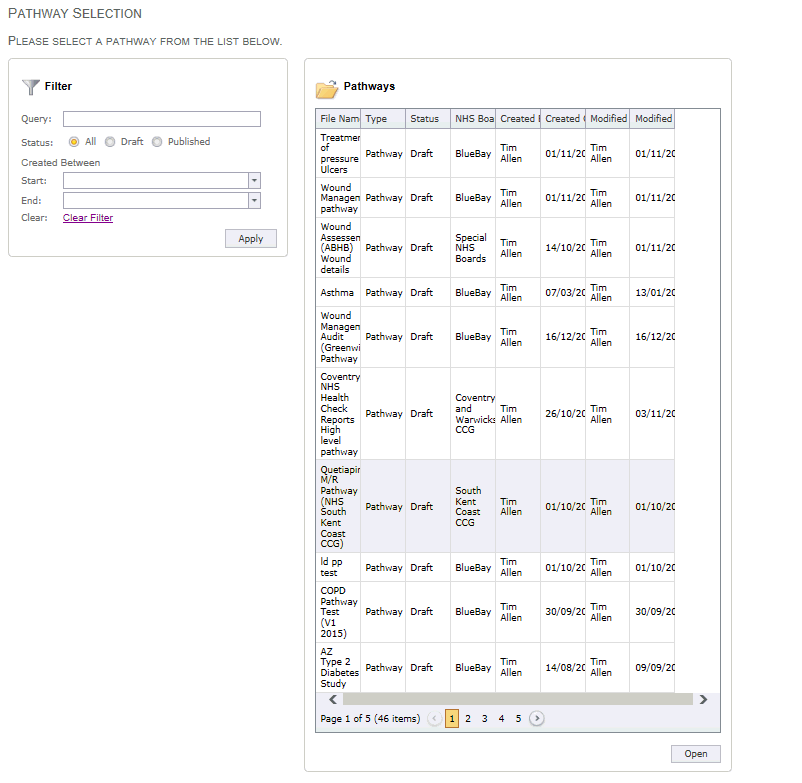
Once you have logged in you will be presented with a list of Care Pathways that you have built. Search for or filter your list if required.
• Highlight the pathway you want to link to and click open.
Your high level pathway will display in the left hand pane:
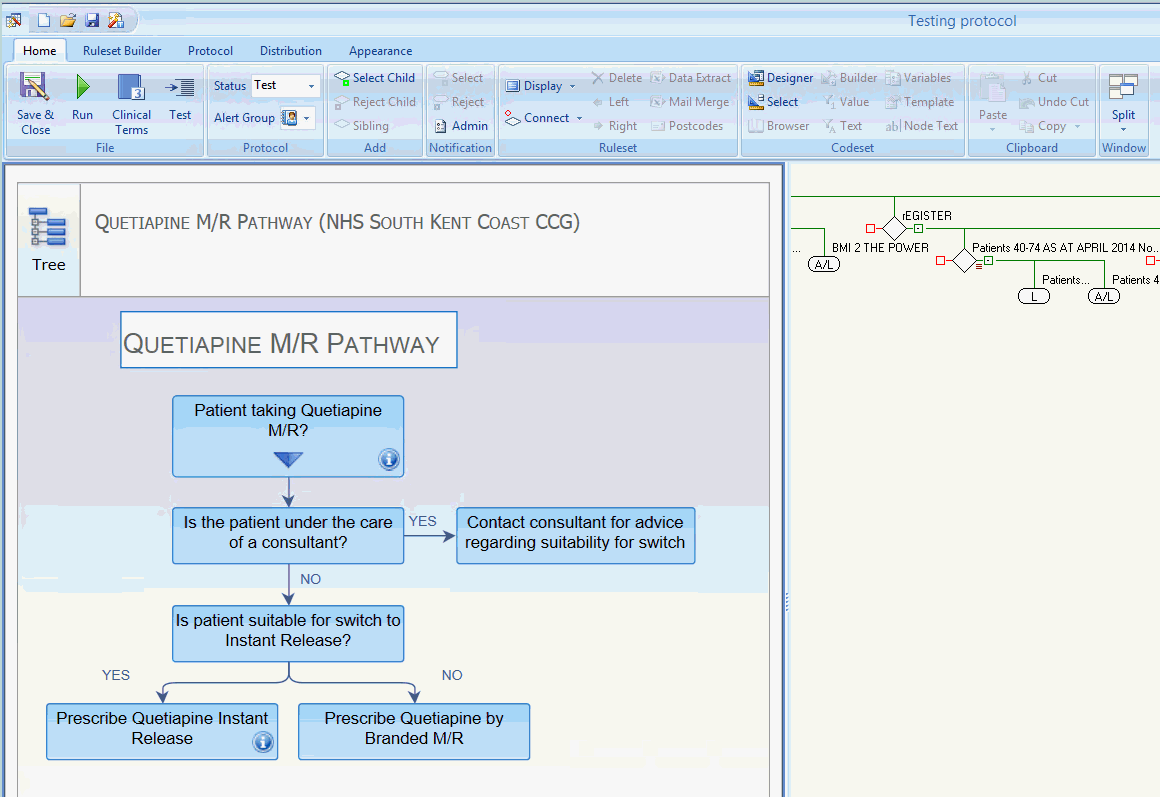
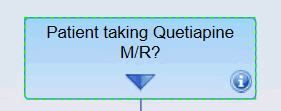
• Click on a node in your high level pathway.
The border will turn green to show it has been selected.
• Select the Node in your rule you wish to connect the high level node to.
• Click on a Node in your high level pathway.
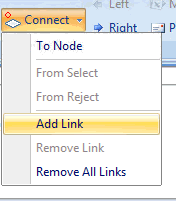
• Click on Connect - Add Link.
(Or right mouse click and select from the Ruleset inline menu)
Once you have connected to a rule node a chain link icon will appear above the rule.

Removing a link\ all links:
• Select a linked node and Click on Connect - Remove
Link \ Remove All Links
(Or right mouse click and select from the Ruleset inline menu)
The link icons will disappear and the pathway
nodes will no longer be saved.